
Game area, capture points and missions
Status brings together game-area maps, capture points, objectives and announcements. Battlegroup factions have their own event views. Log in with your Kuulaportti account and choose your faction’s event; access opens after your arrival has been checked in at the event.
Open Status EhasaDownload the app

Get started
- Choose the right event
Choose your faction’s Battlegroup event and check the year. The public map and your faction’s view may be separate events.
- Log in with your Kuulaportti account
Use the Kuulaportti account associated with your ticket. Your faction’s view opens once your arrival has been checked in at the event.
- Prepare your phone
Allow location and notifications if you want to use those features. Save the map area you need while you have a reliable connection.
Using Status during the game
The content and tools available to you depend on the selected event, your login and your faction’s access rights.
Map and layers
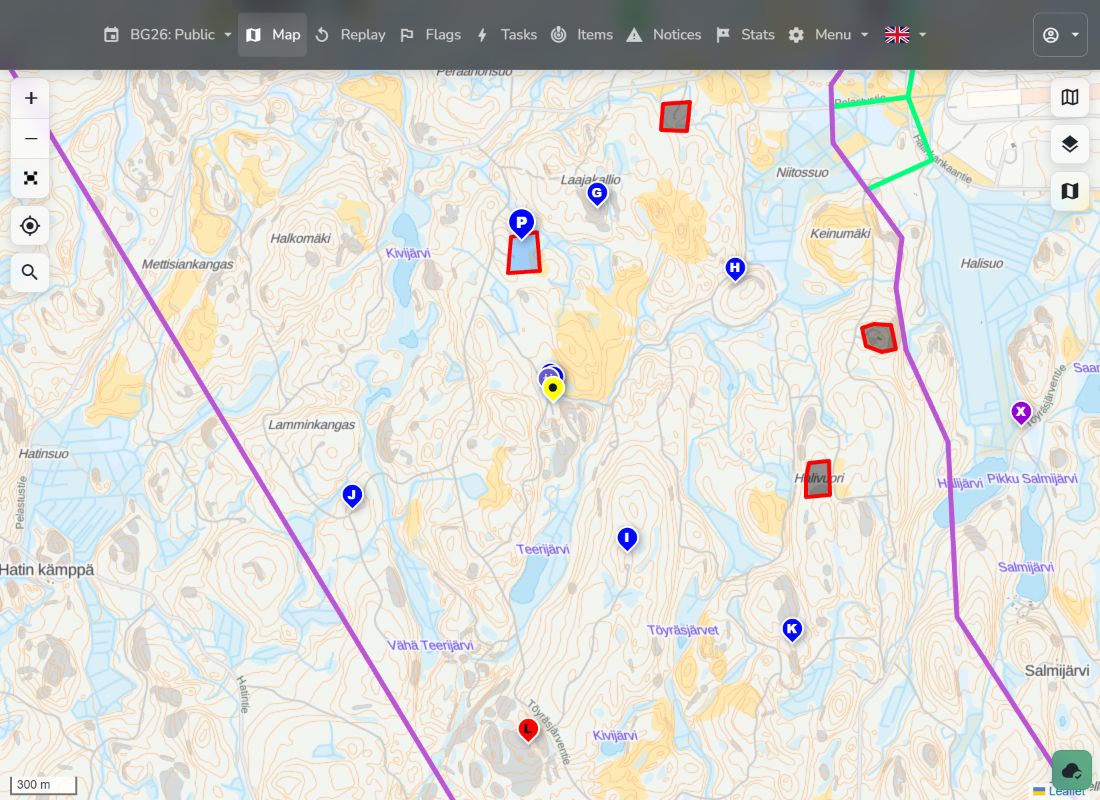
- Drag to move the map and pinch or use the +/− buttons to zoom. Tap a map feature to open its details.
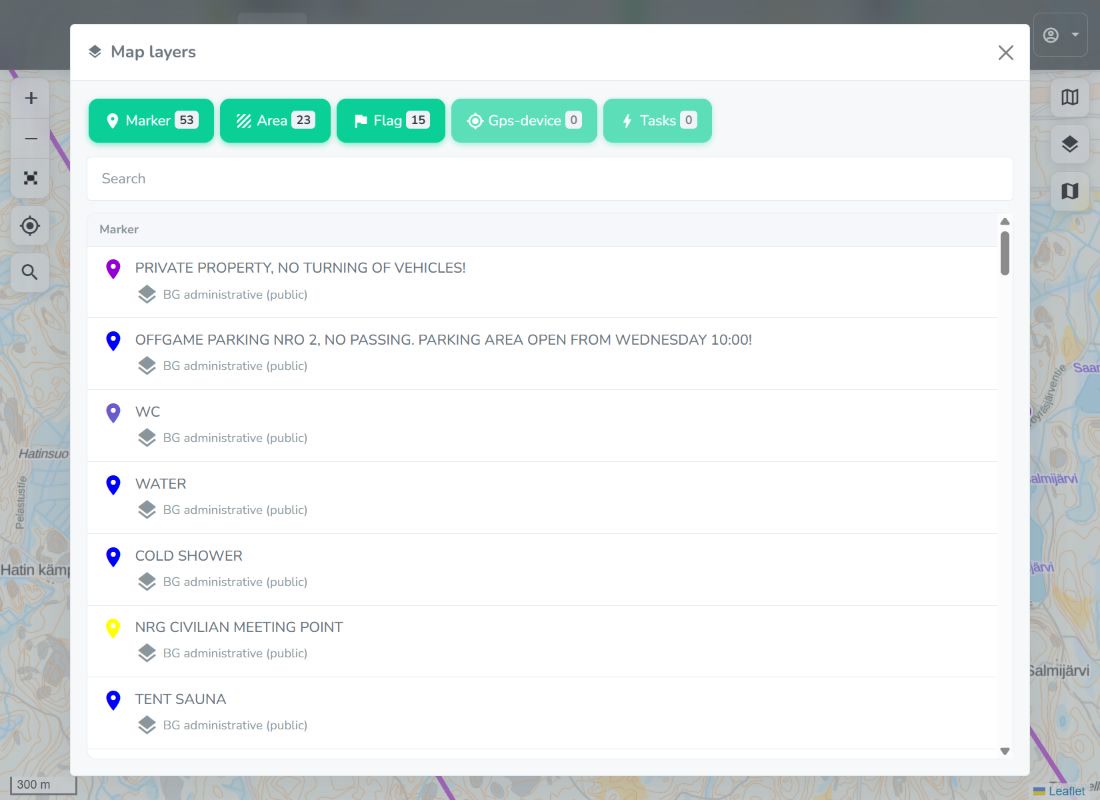
- Choose the layers you need from Layers. Showing fewer layers keeps the map clear and reduces the workload on your phone.
Share your location
- Log in and press the map’s location button. Allow the requested location access. The first position also centres the map.
- Press the same button again to stop sharing. To recenter without stopping, use Centre on my location in the connection and permissions panel.
- Check the sharing state in the connection panel. Use the official app for background tracking where supported; location permissions and power saving affect updates.
Flags and statistics
- The Flags list shows who controls each point, captures in progress, and the capture and confirmation times.
- Statistics shows faction scores and their progress. Select a faction’s name for detailed figures, or use the chart’s name buttons to adjust the comparison.
Tasks and items
- Open Tasks, search for an objective and open its card. Read the instructions, timing and attachments. Show on map opens its location when one is available.
- The Items list provides an item’s description, identifier and any attachments. A location is shown only when one is available.
Opening an item card Demo
Notices and notifications
- Read game-management announcements in Notices.
- Enable notifications in User settings and allow the browser or app permission request. Select the notification categories that matter to you.
Reading and searching notices Demo
Save a map for offline use
- Display the area you need and use the map-area saving function while connected. Wait for confirmation that saving has finished.
- The saved map covers only the selected area and stored zoom levels. Captures, tasks, notices and positions do not update live without a network connection.
Replay and map images
- Open Replay when the event has recorded history. Play the recording or drag the timeline. Select the clock time to choose a day or find a particular time.
- Use the three-dot menu to copy a link to the selected moment or save a map image. Anyone opening the link still needs access to that event.